
Your Wi-Fi or office internet keeps working until it suddenly doesn’t. Then streaming buffers, emails lag, and video calls stutter. That’s when network infrastructure matters.
At its core, network infrastructure is the hardware and software that connects devices so they can share data. It lets your phone talk to a router, your laptop reach a server, and your business move files with less delay. In everyday life, you see it when you stream videos, send emails, or log into cloud apps.
Now, here’s the part people often miss: network cables are the backbone of many “real” connections. Even if you use Wi-Fi, wired links usually carry the heavy traffic. Cables help keep speeds steady and reduce interference.
Below, you’ll break down the main components of network infrastructure, then see exactly how cables fit into the picture. You’ll also compare wired vs wireless networks, learn practical setup tips, and get a look at what’s changing in 2026. By the end, you’ll understand how to build faster, more reliable connections.
Breaking Down the Key Parts of Network Infrastructure
Think of network infrastructure like a city. Roads carry cars, traffic lights control flow, and dispatch rules keep things from colliding. In a network, the “cars” are data packets. The “roads” include cabling and wireless paths. The “lights” are the rules and devices that direct traffic.
Most networks include a mix of these components of network infrastructure:
- Routers: Move traffic between networks (like your home network and the internet).
- Switches: Connect devices inside the same local network (like computers in an office).
- Servers: Store and serve data, apps, or services.
- Firewalls: Protect your network by filtering unwanted traffic.
- Cables and access points: Provide the physical links and radio links.
- Protocols and management software: Define data rules and help monitor performance.
If you want a helpful baseline, this overview of core pieces can give context for how these parts work together: key components of network infrastructure.
Hardware That Powers Your Connections
Hardware handles the physical work of sending, receiving, and directing data. It’s the difference between “it might work” and “it works all day.”
Here are the common hardware blocks you’ll see in many networks:
- Modem: Often your internet “translator.” It brings your connection into your space.
- Router: The traffic controller. When your device requests data, the router decides where it should go.
- Switch: The local connector. It links devices on the same network, usually with Ethernet.
- Server: The storage and service engine. File servers, web apps, and backups often live here.
- Firewall: The guard at the gate. It blocks unsafe or unwanted connections.
- Hubs (less common now): Older devices that repeat signals to many ports.
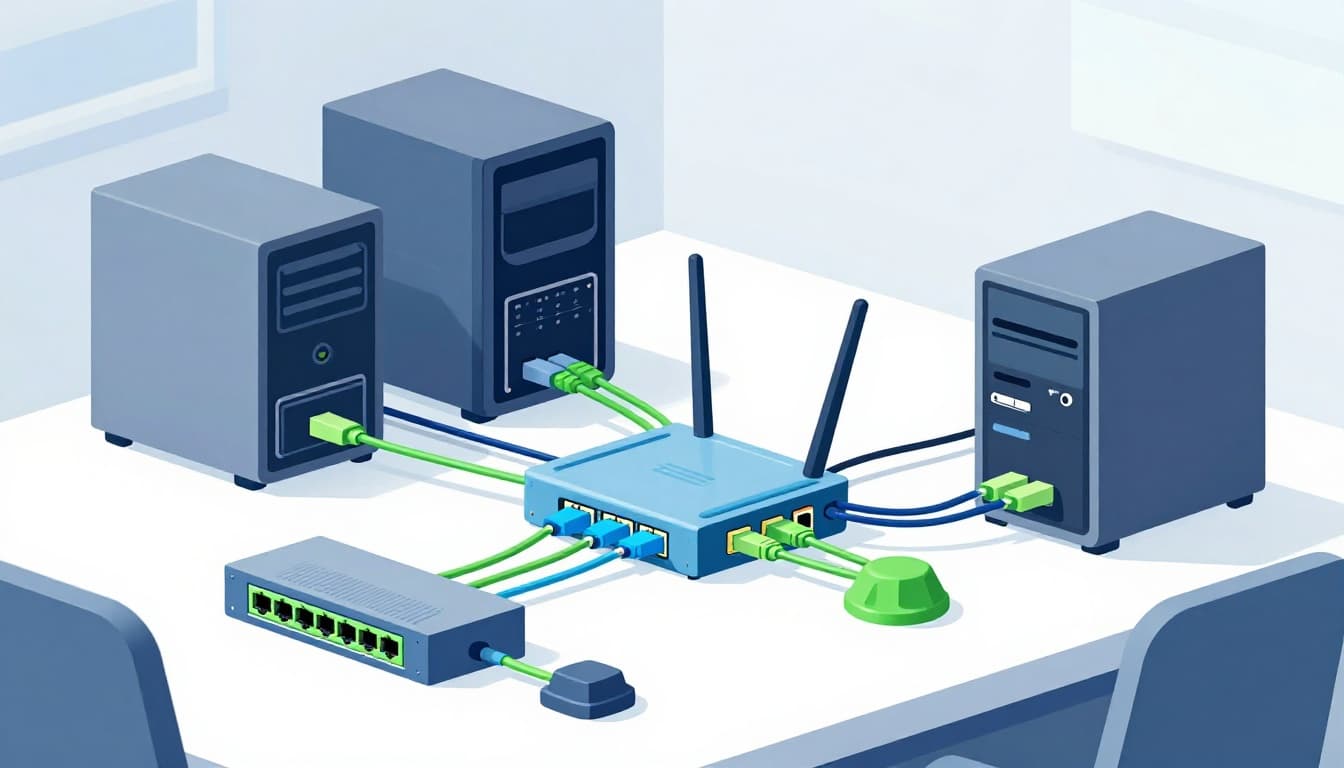
In simple terms, imagine you click a link for a streaming service. Your device sends a request to the router. The router guides it outward through the rest of the network. Meanwhile, switches keep your local devices plugged in without stepping on each other.
The best way to understand the “building blocks” idea is this: routers and switches decide the route, servers provide content, firewalls filter risk, and cabling carries the actual signals.
Software Keeping Everything Running Smoothly
Hardware doesn’t work alone. Software sets the rules, monitors behavior, and helps you fix problems fast.
A few key software roles show up in most real networks:
Protocols. These are the “data rules” that let devices communicate. For example, TCP/IP governs how data packets get addressed, split, and reassembled.
Network management. Tools monitor usage, spot bottlenecks, and track device health. If a link goes bad, management software can flag it before users complain.
Security policies. Firewalls and endpoint controls rely on software settings. These decide what traffic gets allowed, logged, or blocked.
Put it together like this: protocols tell packets how to move. Hardware carries the packets. Management software watches the whole process and helps keep it stable.
If you’re planning, designing, or upgrading, understanding these roles can prevent chaos later. That’s why many IT guides focus on core infrastructure components before jumping into cable selection.
Why Cables Form the Backbone of Network Infrastructure
Wireless is convenient, but cables are dependable. In most setups, network cables carry the “main roads” that feed routers, switches, and servers.
Cables provide a stable physical path for signals. That stability matters when you need high speeds, low delay, or consistent performance. It also helps in busy spaces where Wi-Fi competes with walls, furniture, and interference.
Here’s a simple way to picture it:
- Wi-Fi is like talking from across a room.
- Ethernet is like handing someone a note directly across a table.
In many homes and offices, the backbone is wired. Wi-Fi then extends coverage so phones and laptops can move around.
Also, wired links often support higher throughput. That helps with things like:
- Video calls
- Large file transfers
- Backups
- Cloud app use
- Multi-device streaming
Structured cabling adds another benefit. Instead of random runs of wire, cabling routes through walls, trays, and patch panels. As a result, you get cleaner installs and easier troubleshooting later.
Popular Types of Network Cables and Their Strengths
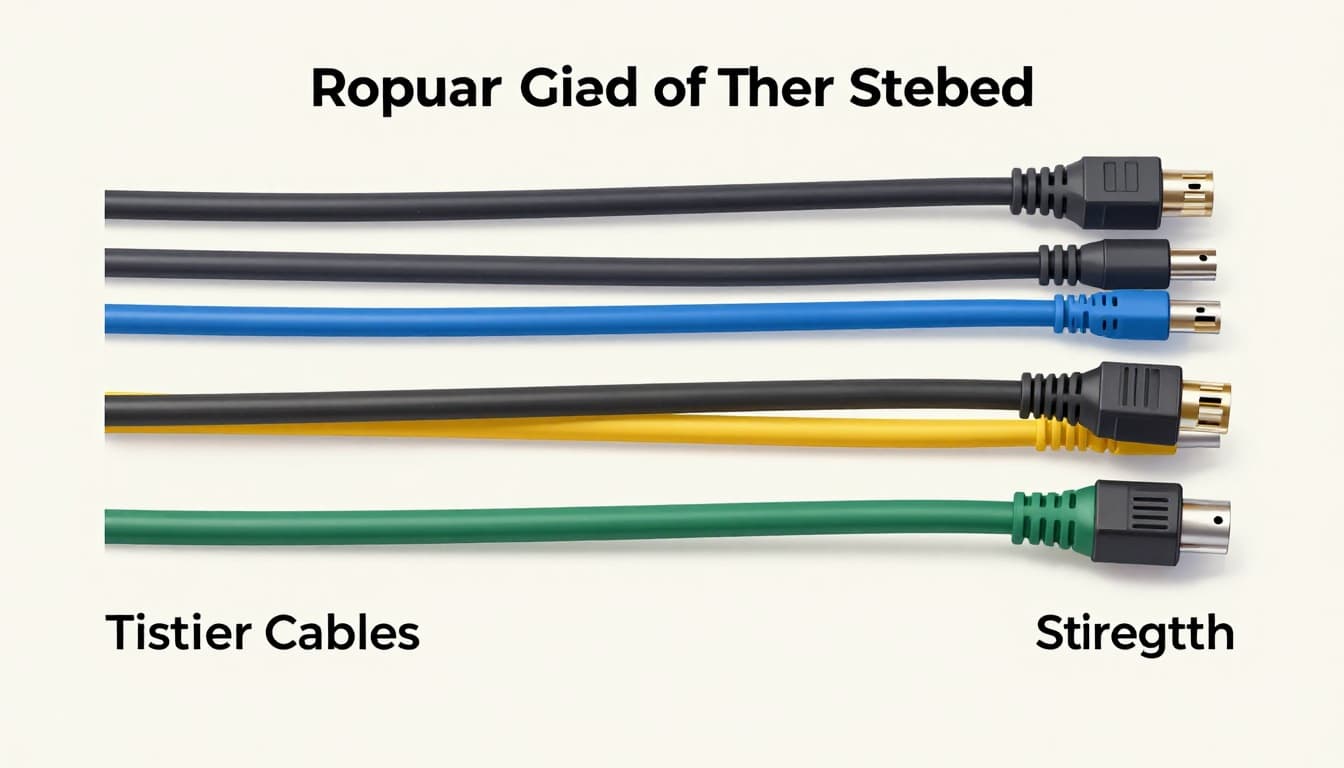
Not all network cables fit the same job. The type matters because each cable supports different speeds and distances.
Below is a quick comparison that matches how people typically use cables:
| Cable type | Common use | Strengths | Limits |
|---|---|---|---|
| Twisted pair (Ethernet, Cat6/Cat6A) | Homes and offices | Great performance for most LAN needs | Distance limits for each speed tier |
| Fiber optic | Long runs, high capacity | Very fast and strong for long distance | Higher setup cost, specialized gear |
| Coaxial | Cable TV, some broadband setups | Works well for specific provider use | Less common in modern Ethernet LANs |
For a clearer side-by-side on how fiber, twisted pair, and coax compare, see fiber optic vs twisted pair vs coax.
Twisted pair Ethernet (like Cat6) is the workhorse. In many offices, it supports reliable high-speed links for computers, printers, and access points. Fiber is the choice for long-haul links between buildings or backbone runs. Coax shows up in certain access networks and legacy setups.
How Cables Link Up Your Network Gear
Cables aren’t just “wires.” They connect the full chain of devices.
A typical signal path looks like this:
- A device (laptop, desktop, access point) connects to an Ethernet port.
- That cable runs to a patch panel or switch port.
- The switch groups traffic inside your local network.
- The router handles traffic between your network and the internet.
- Servers and services handle the actual data requests.
In real life, cables might run through wall channels, ceiling trays, and rack-mounted patch panels. Then a technician terminates the ends and tests the link.
Hybrid networks make this even more common. For example, you might run Ethernet from a switch to a Wi-Fi access point. The access point sends Wi-Fi to phones and laptops, while the backbone stays wired.
When cables are installed well, the network feels “quiet.” Users don’t notice. When cables are wrong, the symptoms are loud: slow speeds, dropouts, and random disconnects.
Wired Cables Versus Wireless: Which Wins for Your Needs?
If you’re choosing between wired vs wireless networks, the answer depends on what you need most: speed, stability, or mobility.
Wired networks usually win for core performance. They offer stable speeds and lower delay. They also reduce the interference games that Wi-Fi faces.
Wireless wins when you need flexibility. You can move devices around without running new cable. That’s why phones and many laptops use Wi-Fi by default.
However, Wi-Fi can slow down in busy areas. Walls and thick materials can weaken signals. Microwaves and neighboring networks add extra noise.
For a practical breakdown of tradeoffs, see wired vs wireless network advantages.
Most real networks use both. A common pattern looks like this:
- Wired Ethernet for office desktops and backbone links
- Wi-Fi for mobile devices and guest access
- Extra wired runs for access points to keep Wi-Fi strong
A quick way to decide
Ask yourself one question: where do you need the most consistency?
- If it’s your office core or a high-traffic workstation, choose wired.
- If it’s convenience and movement, choose wireless.
- If you need both, use wired to feed Wi-Fi and reduce congestion.
That approach helps you avoid lag during calls, reduce streaming drops, and keep file sharing stable.
Setting Up Cables Right and Dodging Common Headaches
You don’t need to be an expert to set up cables well. You do need to plan and test. Cable work also has limits. If a run is too long or the wrong cable type gets used, problems show up later.
Here’s a smart way to think about it: good cable setup saves time twice. First during install. Second during troubleshooting.
Common headaches come from small mistakes:
- Loose terminations
- Bent cables too sharply
- Damaged jackets during pulling
- Using mismatched cable types
- Skipping tests after installation
If you want a dependable step-by-step reference, check how to install Ethernet cable.
Step-by-Step Guide to Cable Installation
Use a simple flow so nothing gets skipped:
- Map your needs: List devices and where you want network ports.
- Pick the right cable: Match cable type to speed needs and distance.
- Plan the route: Keep runs straight and avoid sharp bends.
- Run cables safely: Use trays or conduits when possible.
- Terminate correctly: Follow the connector method (like RJ-45 for Ethernet).
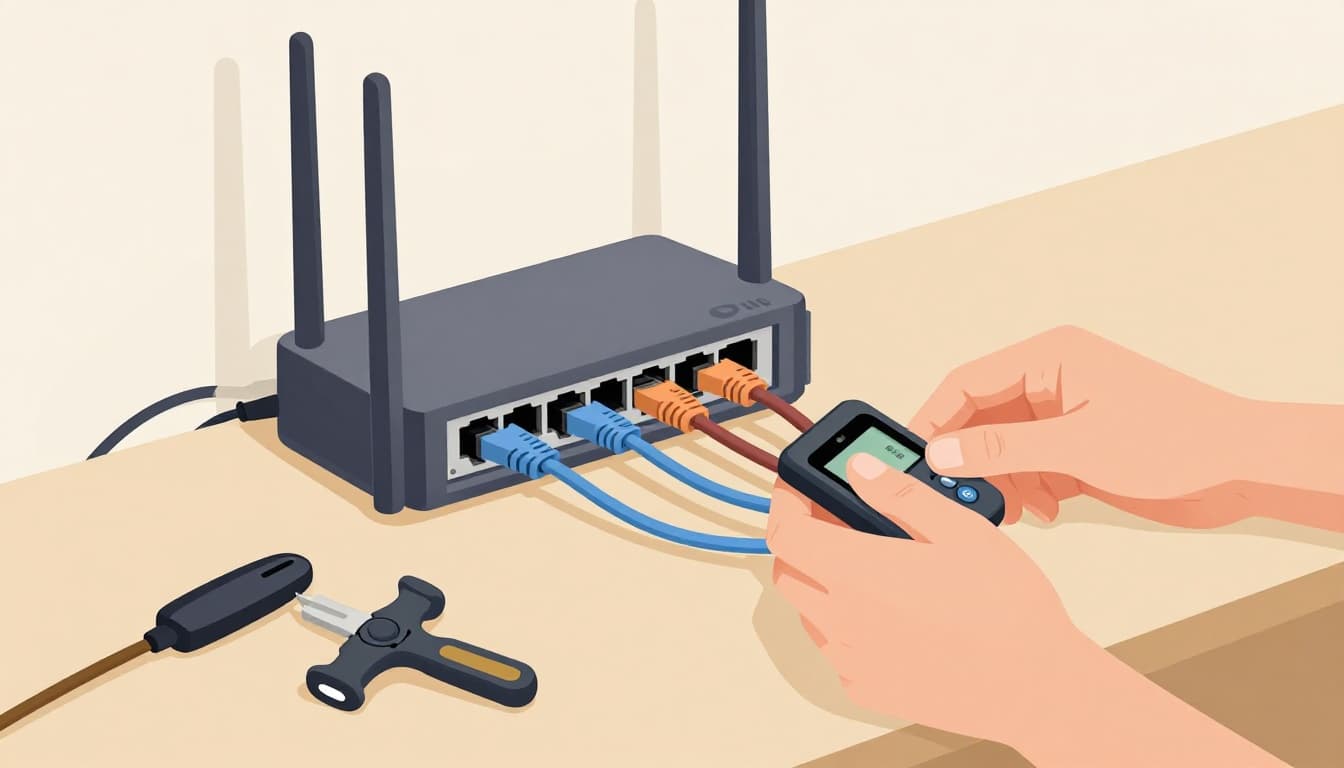
- Test the link: Use a tester before you close walls.
- Label at both ends: It speeds up future changes.
For DIY installs, many people start with Cat6 planning and pull techniques. If that’s your direction, this guide focused on Cat6 can help with practical details: Cat6 cable installation steps.
Also, safety matters. Avoid areas with power lines. If you’re unsure about local rules, bring in a pro. Big jobs can get expensive when they fail after drywall goes up.
Troubleshooting Network Cable Problems Fast
When a cable link acts up, start with the simplest checks. You’re looking for a bad connection, bad termination, or damaged cable.
Common symptoms include:
- Slow speeds on one device
- Random dropouts
- Link lights that flicker
- Only one port failing
- Problems after a move or renovation
Fast fixes you can try:
- Reseat the connector at both ends.
- Swap in a known-good cable to isolate the fault.
- Check patch panel and switch ports for damage.
- Inspect cable runs for cuts or tight bends.
- Update switch firmware (rare, but it helps sometimes).
Cable testers are worth it. A basic Ethernet tester can confirm link quality. For more advanced runs, technicians may use testers that check performance beyond simple connectivity.
When you troubleshoot like this, you avoid guesswork. You also keep downtime shorter.
What’s Coming Next in Network Infrastructure and Cables
Network infrastructure isn’t standing still. In 2026, the biggest changes focus on automation, AI help, and faster wireless and fiber.
Based on current industry coverage, you’ll see these shifts take hold:
- AI for network management: Tools predict issues and adjust settings faster.
- Wi-Fi 7 becoming standard: Better timing and lower delay help for real-time apps.
- More fiber and higher capacity: Cables keep expanding, especially for backbones.
- DOCSIS 4.0 rollout: Cable networks push toward higher upload and download performance for many users.
- Networks working together: Systems coordinate so traffic chooses the best path.
For a recent look at how the AI era changes enterprise connectivity, see AI-era network management changes.
Still, one truth won’t change: wired links remain the foundation for stability. Even as Wi-Fi improves, cables still carry the bulk of traffic. That means smart cable choices today can protect you from upgrade pain tomorrow.
Putting it All Together
Network infrastructure is what lets devices share data reliably. Routers, switches, servers, and security tools do the directing. Software and protocols keep the rules consistent.
Cables are how that system gets real-world strength. They turn connection promises into stable links, especially for backbone traffic. When you plan runs, terminate cleanly, and test, you cut down future trouble.
So if your network feels shaky, don’t start with guessing. Audit your network cables and check the wired path first. Then upgrade what’s limiting performance. Ready to strengthen your network, one connection at a time?